





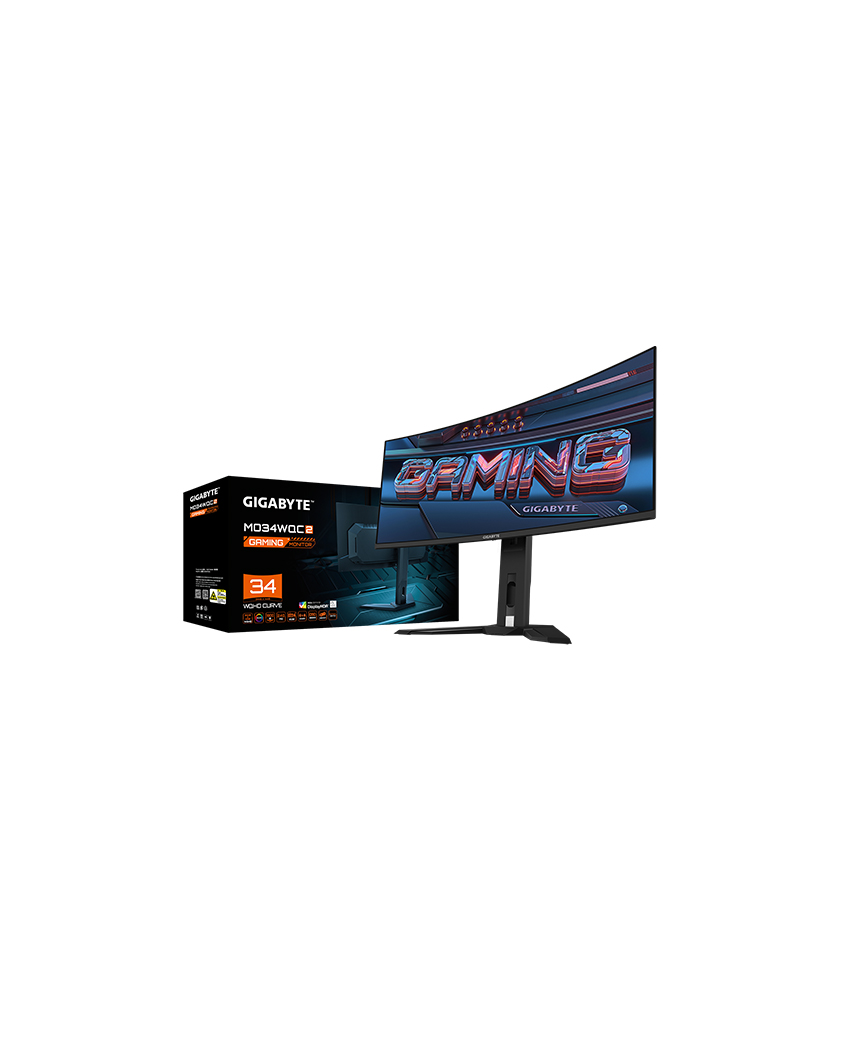
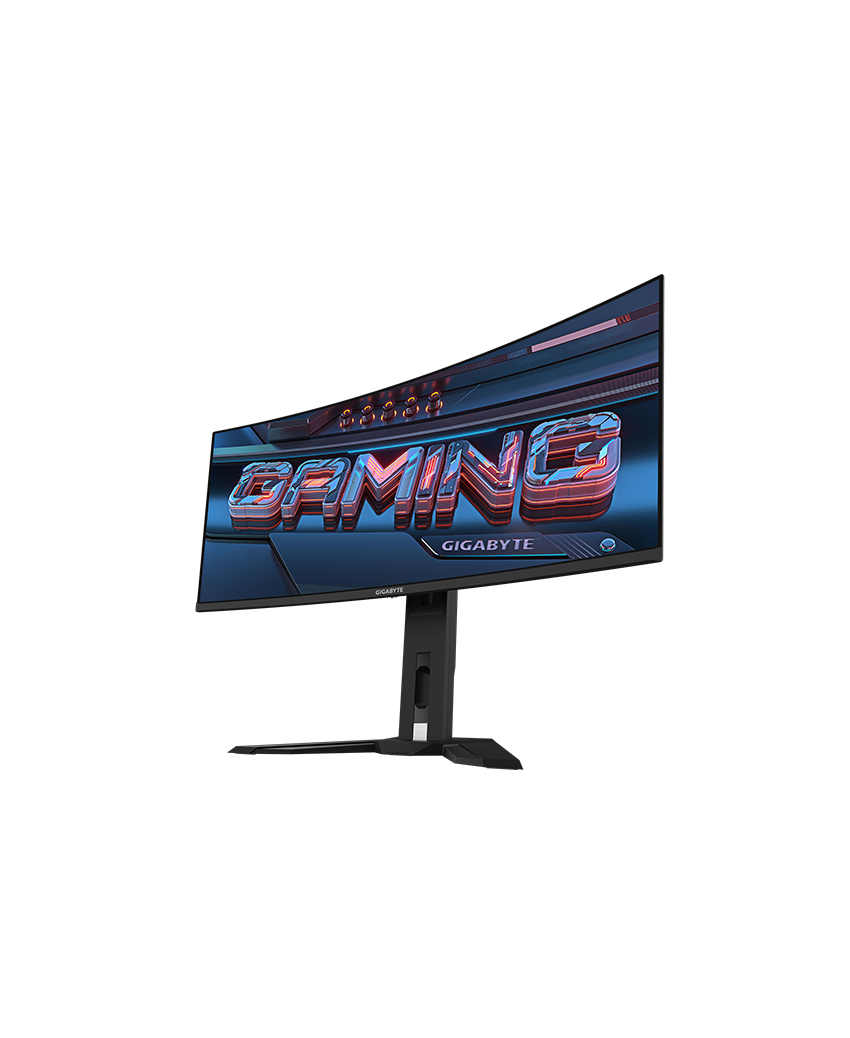
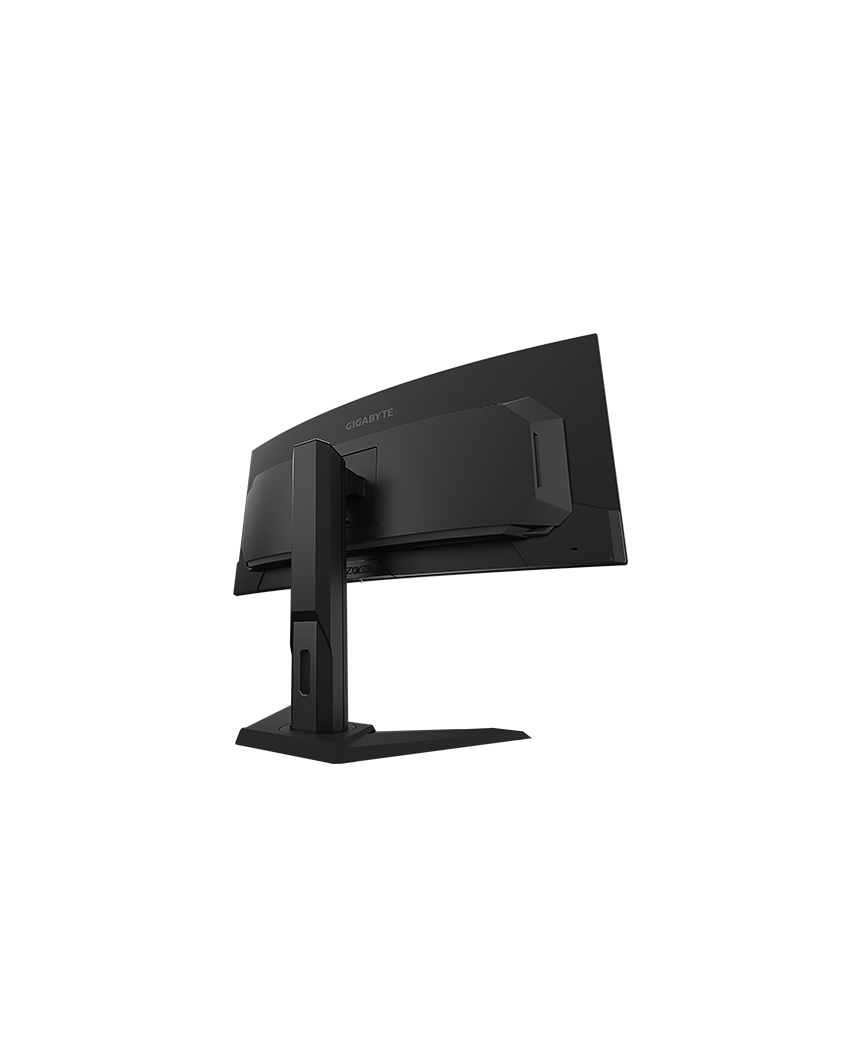




MO34WQC2 Gaming Monitor – Technical Specifications
Display
| Panel Size (Diagonal) | 34″ OLED |
| Resolution | 3440 x 1440 (WQHD) |
| Panel Type | OLED |
| Display Surface | Anti-Reflection |
| Color Saturation | 99% DCI-P3 |
| Brightness | 250 cd/m² (Typ, SDR); 1000 cd/m² (Typ, HDR Peak) |
| Contrast Ratio | 1,500,000:1 |
| Viewing Angle | 178°(H) / 178°(V) |
| Display Colors | 10-bit (1.07 Billion) |
| Response Time | 0.03ms GTG |
| Refresh Rate | 240Hz |
| HDR | VESA DisplayHDR True Black 400 |
| Motion Clarity | VESA Certified ClearMR 13000 |
| Flicker-Free | Yes |
Connectivity & Audio
| Ports | 2 x HDMI 2.1 1 x DisplayPort 1.4 1 x USB Type-C (DP Alt Mode, 18W Power Delivery) 2 x USB 3.2 Downstream ports 1 x USB 3.2 Upstream port |
| Earphone Jack | Yes |
| Microphone Jack | Yes |
| Speakers | 3W x 2 |
Gaming & Unique Features
| Features | Tactical Switch OSD Sidekick Black Equalizer 2.0 Dashboard Crosshair Timer & Counter Eagle Eye PiP/PbP Auto-Update KVM Switch HDMI-CEC |
Ergonomics
| Tilt | -5° to +20° |
| Swivel | ±30° |
| Height Adjustment | 130 mm |
| VESA Wall Mounting | 100 x 100 mm |
| Kensington Lock | Yes |
Power
| Power Type | Built-in |
| Power Consumption | 48W |
| Power Saving Mode | <0.5W |
| Power Off Mode | <0.3W |
| Voltage | AC 100-240V ~ 50/60Hz |
Dimensions & Weight
| Dimensions with Stand (WxHxD) | 811.7 x 595.3 x 244.3 mm |
| Dimensions without Stand (WxHxD) | 811.7 x 361.2 x 105.8 mm |
| Net Weight with Stand | 9.86 kg |
| Net Weight without Stand | 6.68 kg |
| Gross Weight | 12.5 kg |
Accessories
- Power cable
- HDMI 2.1 cable
- DisplayPort cable
- USB cable
- Quick Start Guide
- Warranty card
Note
*To enable OSD Sidekick (integrated in GCC), it requires a USB connection between the PC and monitor.
**Power consumption test condition follows CEC standards.